NATION WIDE LADDER & EQUIPMENT
NH: 603-434-6911MA: 508-754-3030ME: Regular weekly deliveries from NH
- Home
- Blog
Let Nationwide Ladder & Equipment Help You Find What You Need.
Why Choose a Network KVM Switch for Remote Server Access?
A failed server rarely waits for office hours. A frozen operating system, failed reboot, or BIOS prompt may leave a remote team unable to use ordinary software tools. A Network Kvm Switch can provide out-of-band access to a server’s keyboard, video, and mouse, letting an authorized technician inspect the screen and respond from another location. No truck roll. In practice, that can mean seeing a boot error on a console display and restoring access without entering the server room.
Security technologist Bruce Schneier’s familiar reminder, “Security is a process, not a product,” offers a useful lens for this choice. Remote console access should be protected with strong authentication, limited permissions, and thoughtful network segmentation. The switch itself does not make an infrastructure secure. It is one part of a larger access plan. Administrators should also check supported video resolutions, port capacity, connection reliability, and whether the device records useful audit details. A KVM connection can save time, but it cannot fix every outage or replace sound recovery procedures. That distinction matters. For teams managing servers across sites, the right Network Kvm Switch can make hands-on troubleshooting more practical, while still demanding careful setup and ongoing review.
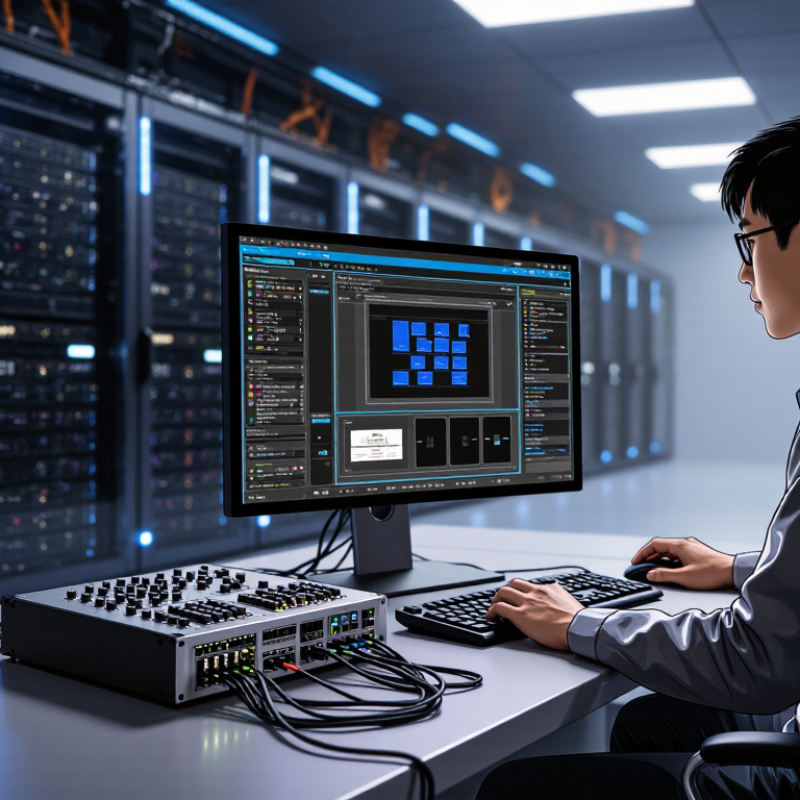
Table of Contents [Hide]
What a Network KVM Switch Is and How It Works
A network KVM switch lets an authorized operator control a server over an IP network. KVM means keyboard, video, and mouse. Unlike ordinary remote desktop software, it can provide access before the server’s operating system loads. That matters when a machine is stuck at a startup screen or needs a firmware setting changed.
The device connects to the server’s video output and USB ports, then links to the network. From another computer, an operator opens its management interface and views the server’s screen. Keyboard and mouse commands travel back through the device. The server stays put. No OS is needed. In a rack, this can mean checking a boot message without walking to the equipment room.
Image quality and response time depend on the device, network, and video settings. A slow connection may make mouse movement feel delayed. Access should be limited to named accounts, strong authentication, and trusted network paths; remote console access is powerful. Keep credentials protected.
One practical detail can be easy to miss: the server still needs power, and the KVM device must be configured correctly. It is useful, but not magic.
How Network KVM Enables Remote Server Access
Why Choose a Network KVM Switch for Remote Server Access?
A network KVM switch lets an authorized technician control a server’s keyboard, video, and mouse through an IP connection. Unlike tools that depend on the operating system, it can often show the startup screen and BIOS settings. That matters when a server freezes before loading its software. From a secure workstation, an administrator can inspect the console, restart the machine, or change boot settings without visiting the equipment room. A visible login prompt. A stalled boot screen. These details can help narrow down a fault.
Access depends on correct setup. Use strong authentication, encrypted connections, and individual accounts where available. Limit access to trusted networks, and keep firmware updated according to the manufacturer’s guidance. A KVM connection does not fix every issue; a failed power supply or network outage may still require hands-on support. I have found that remote control saves time, but troubleshooting can feel slower when screen refreshes lag. Test access before an emergency, not during one.
Tips: Label each server port, keep recovery credentials in an approved secure vault, and test keyboard control, video, and restart functions during a maintenance window. Note any delay or display mismatch; small quirks are easy to overlook until they matter.
Key Benefits for Server Management and Troubleshooting
A network KVM switch gives administrators remote access to a server’s screen, keyboard, and mouse through a network connection. That access can remain available when the operating system freezes or fails to start. From a management console, staff can inspect boot messages, change firmware settings, or restart a machine without traveling to the rack. That matters. During an overnight incident, a stalled login prompt may help distinguish a software fault from a hardware failure. Remote console access can also support routine maintenance across servers in different rooms or sites. No truck required.
For troubleshooting, live video and direct input reveal details that remote desktop tools may miss before the operating system loads. Technicians can watch startup codes, check whether a keyboard responds, and adjust a boot setting in real time. Access should be limited to named users, protected with strong authentication, and placed on a restricted management network. These safeguards reduce exposure, but they do not replace monitoring or recovery plans. A KVM switch cannot fix a failed power supply, and poor network conditions can make control feel sluggish. In practice, it works best alongside clear procedures and occasional hands-on checks. Stay realistic.
Security and Reliability Considerations for Remote Control
Why Choose a Network KVM Switch for Remote Server Access?
Security and Reliability Considerations for Remote Control
A network KVM switch provides access to a server’s keyboard, video, and mouse over an IP connection. It can help technicians diagnose boot failures even when the operating system is unavailable. That matters during a late-night outage. But remote screen access also creates a sensitive path into the server room.
Protect that path with a dedicated management network, encrypted connections, and individual accounts with only necessary permissions. Require multi-factor authentication where supported, and review access logs after maintenance. Keep firmware current, but schedule updates carefully: a failed update can interrupt the very access meant to support recovery. A KVM switch is not a security boundary by itself. Weak credentials or broad network access can undermine its safeguards.
Reliability depends on more than the device. Check that management network links and power remain available during an outage, and keep a local recovery option for critical systems. Test remote access before an emergency, including whether the console remains usable during reboot. Small details matter: a misplaced cable label or a forgotten account can waste precious minutes. I would not assume every remote session behaves perfectly; latency, display quirks, and configuration mistakes still happen. Regular checks catch some of them, not all.
| Consideration | Network KVM Switch | Host-Based Remote Access | Local Console |
|---|---|---|---|
| How access works | Carries keyboard, video, and mouse signals over an IP network through hardware connected to the server. | Uses software on the server or operating system to provide a remote session. | Requires a person to connect directly to the server or nearby console equipment. |
| Access before the OS loads | Can provide access to firmware setup, boot screens, and pre-boot troubleshooting when the hardware connections support them. | Typically depends on the host OS and remote-access service being available; coverage varies by implementation. | Provides direct access to the screen and controls, including during startup. |
| Dependence on server software | Usually does not require a remote-control agent running on the server; the KVM device still needs its own secure configuration and maintenance. | Often depends on a working host service, compatible OS, and correct permissions. | Does not require remote-access software or a network connection. |
| Authentication and MFA | Capabilities vary. Use unique accounts and strong authentication; MFA may be provided by the device, an access gateway, or an identity platform. | Capabilities vary by product and configuration; enforce MFA through the service or a trusted access layer where available. | Physical access controls are central; console sessions do not inherently provide network-based MFA. |
| Encryption and network exposure | Encryption support varies by device and setup. Restrict management access to trusted networks or a secure gateway, and verify encryption settings. | Encryption and exposure depend on the remote-access service and its configuration; avoid exposing management services directly to the public internet. | No remote network traffic is needed for direct access, though the physical site and console must be secured. |
| Network segmentation | Can be placed on a dedicated management network with narrowly controlled routes and firewall rules. | Can be restricted using host firewalls, network controls, and access gateways; the exact approach depends on deployment. | Network segmentation is not needed for the console connection itself; physical access remains a key control. |
| Session records and accountability | Logging, user attribution, and session recording are device-dependent. Confirm retention, access controls, and time synchronization. | Logging and recording depend on the service, host configuration, and any central access platform. | Remote session logs are not inherent to a direct console; use site-access and operational procedures for accountability. |
| Failure dependencies | Remote access depends on the KVM device, its power, the network path, and the server’s video and USB connections. | Remote access depends on the host, its OS or service, the network path, and any supporting authentication systems. | Depends on staff being able to reach the site and on working local console equipment. |
| Continuity measures | Consider redundant network paths and power, documented recovery procedures, and a tested local fallback where availability requirements justify them. | Consider service monitoring, reliable network connectivity, tested recovery access, and a separate fallback for host or OS outages. | Maintain site access, trained personnel, and working spare console equipment for time-sensitive incidents. |
| Best-fit use | Useful when remote operators need hardware-level interaction, including troubleshooting that may occur before the OS is available. | Useful for routine administration when the host and its remote-access service are operating normally. | Useful as a direct-access option or fallback when network-based management is unavailable. |
Security features and availability vary by implementation. Review the device or service documentation, apply updates, limit access, and test recovery procedures regularly.
How to Choose a Network KVM Switch for Your Environment
Choosing a network KVM switch starts with the servers, not the feature list. Count physical machines, check their video connectors, and note whether each needs USB keyboard and mouse control. Mixed-generation hardware may require adapters, and every adapter adds another point to test. Small details matter.
Consider where operators will connect from and how many sessions may run at once. For one server room, a basic web interface may be enough. Distributed sites often need role-based access, encrypted connections, and clear audit logs. Check network latency and bandwidth, too. Keep the management port on a protected administrative network, separate from ordinary user traffic where practical. Test access during a simulated outage. Can staff reach firmware setup or reboot a frozen host when its operating system is unavailable? A missing cable can still spoil the plan.
Choose enough port capacity for expected growth, without buying far more than you can use. Confirm that the switch works with your authentication process and backup power setup. Then pilot it with an older server and a common maintenance task. Specifications rarely expose every awkward edge case. I would not assume a smooth demo guarantees easy use at 2 a.m. A short hands-on test can reveal confusing menus, slow video updates, or connector problems before deployment.
Article Source:
What Can We Help You With?
CALL NOW TO ORDER
NH: 603-434-6911MA: 508-754-3030ME: Regular weekly deliveries from NH
CALL NOW TO ORDER
NH: 603-434-6911MA: 508-754-3030ME: Regular weekly deliveries from NH










Featured Product

Streamlined. Safe. Flexible.
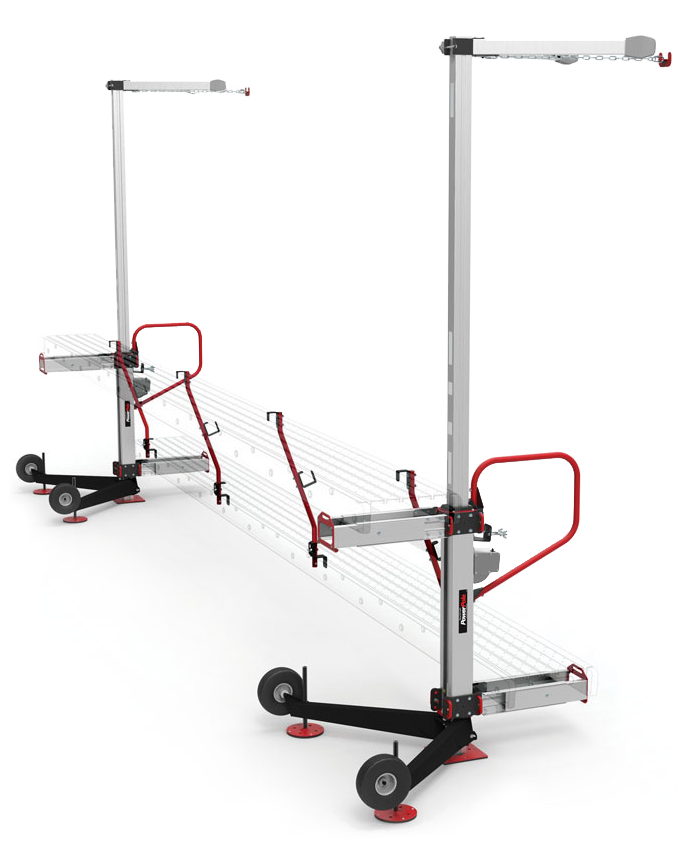
With the ReechCraft PowerPole, traditional scaffolding and pump jack systems are a thing of the past. Our streamlined design gains you access between buildings, on rooftops, around landscaping, and more. The PowerPole is perfect for contract work on residential areas.
See Products & Accessories
- ReechCraft Power Pole
- ReechCraft 4022465 – 10 in. x 10 in. Base Foot
- ReechCraft Platform Support
- ReechCraft 4022179 – Platform Support with PowerLatch Connector
- ReechCraft PowerLatch Assembly
- ReechCraft 4022084 – PowerPole 12 ft Pole Section
- ReechCraft 4022435 – PowerPole 6 ft Pole Section
- ReechCraft 4028334 – PowerPole Climbing Unit
- ReechCraft 4022096 – PowerPole Coupler
- ReechCraft 4022629 – PowerPole Extendable V-Brace
- ReechCraft 4022791 – PowerPole Outrigger
- ReechCraft 4022432 – PowerPole Standoff Tie
- ReechCraft 4022178 – PowerPole Super Standoff Tie
- ReechCraft 4022629 – PowerPole V-Brace
- ReechCraft 4022756 – Single Man Basket
- ReechCraft 4022071 – SpeedRail Endrail (Two-Pack)
- ReechCraft 4022765 – SpeedRail Midrail Post (Two-Pack)

Headache Racks That Turn Heads


See Products & Accessories

June 2022 - Month Long Promotion
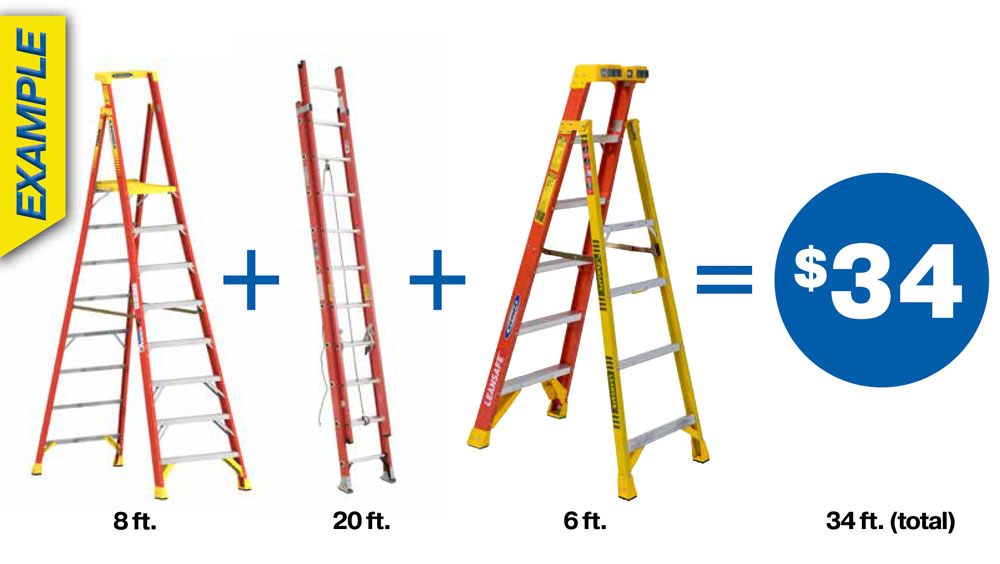
Buy any of the listed Werner ladders and get
$1 Off Per Foot
Demo and Safety Day
Don't miss our WernerCo Sfety and Demo Day BBQ
June 23rd, 2022 from 10am - 2pm
Chance to win giveaways
Cookout from 10am - 2pm
Werner fall protection and Weatherguard Specialists on site to answer any questions and perform safety and product demonstrations.
System One Modular Truck Equipment for New Hampshire, Massachusetts, Connecticut, Rhode Island, Vermont, and Maine Contractors
- Lewiston, ME
- Bar Harbor, ME
- Lexington, MA
- North Andover, MA
- East Hampton, CT
- Meredith, NH
- Concord, NH
- Bennington, VT
- Biddeford, ME
- West Fairlee, VT
- Hopkinton, RI
- Freeport, ME
- Danbury, CT
- Waterboro, ME
- Winslow, ME
- Buxton, ME
- Southington, CT
- Milford, NH
- Pownal, VT
- South Berwick, ME
- North Haven, CT
- Atkinson, NH
- Farmington, NH
- Whitingham, VT
- Pelham, NH
- Essex, VT
- Wallingford, VT
- Laconia, NH
- Narragansett, RI
- Fair Haven, VT
- Sandown, NH
- New London, NH
- Portsmouth, RI
- Haverhill, NH
- Needham, MA
- Bridgewater, MA
- Middletown, RI
- Montpelier, VT
- Barre, VT
- St. Johnsbury, VT
- Livermore Falls, ME
- Sandwich, MA
- Newport, RI
- Raymond, NH
- Tunbridge, VT
- Barnet, VT
- Brooksville, ME
- Gorham, ME
- Litchfield, ME
- Bristol, CT
- Rumford, ME
- Thompson, CT
- Dover, VT
- Westminster, VT
- Waitsfield, VT
- Torrington, CT
- Scituate, RI
- Barnstead, NH
- Lovell, ME
- Barton, VT
- Unity, ME
- Skowhegan, ME
- Groton, CT
- Northfield, VT
- Hopkinton, NH
- Limerick, ME
- Candia, NH
- Berwick, ME
- Killington, VT
- Peacham, VT
- North Hampton, NH
- Randolph, MA
- Bloomfield, CT
- Watertown, MA
- Wilmington, MA
- Methuen, MA
- Nashua, NH
- Plymouth, NH
- Newmarket, NH
- Alfred, ME
- Caribou, ME
- Weymouth, MA
- North Yarmouth, ME
- Bethel, CT
- Rocky Hill, CT
- Bristol, RI
- Sabattus, ME
- Salem, MA
- Londonderry, NH
- Chester, NH
- Westford, VT
- Stamford, CT
- Vershire, VT
- East Hartford, CT
- Norwich, CT
- Stratham, NH
- Windham, NH
- Vernon, CT
Knaack Jobsite Boxes, Chests, Cabinets, Workbenches, Field Offices, and Accessories
- Raymond, ME
- Fairfax, VT
- Presque Isle, ME
- Highgate, VT
- Norridgewock, ME
- Old Saybrook, CT
- Marblehead, MA
- Nashua, NH
- Mashpee, MA
- Auburn, NH
- Bowdoin, ME
- Milford, CT
- Bolton, CT
- Mendon, VT
- Dartmouth, MA
- Portland, CT
- North Haven, CT
- New Gloucester, ME
- Bourne, MA
- New Canaan, CT
- Belmont, NH
- Rutland, VT
- Fitchburg, MA
- Waterbury, CT
- Burlington, VT
- Fair Haven, VT
- Bethel, VT
- Greene, ME
- Chicopee, MA
- New London, CT
- Gloucester, MA
- Mechanic Falls, ME
- Wilmington, MA
- Fairfield, CT
- Methuen, MA
- Newport, ME
- Bakersfield, VT
- Monroe, CT
- Meriden, CT
- Prospect, CT
- Thomaston, ME
- Watertown, MA
- Winchester, ME
- Hampstead, NH
- Gilford, NH
- Pownal, VT
- Essex Junction, VT
- Lincoln, ME
- East Lyme, CT
- Tolland, CT
- Naugatuck, CT
- Dennis, MA
- Waldoboro, ME
- Derry, NH
- Bridgewater, MA
- Windham, NH
- Longmeadow, MA
- West Rutland, VT
- Warren, ME
- Coventry, RI
- Whitingham, VT
- Bow, NH
- Norway, ME
- Smithfield, RI
- Sharon, VT
- Amherst, MA
- Wells, ME
- Sabattus, ME
- Stoughton, MA
- Thetford, VT
- Tewksbury, MA
- Norwich, CT
- Rochester, VT
- Gray, ME
- Madison, ME
- Leominster, MA
- Newington, CT
- Sutton, VT
- Shelton, CT
- East Hampton, CT
- Darien, CT
- Haverhill, NH
- Houlton, ME
- Foster, RI
- Medford, MA
- Littleton, NH
- Seymour, CT
- Harrisville, RI
- Killingworth, CT
- Bellows Falls, VT
- Lunenburg, VT
- Saco, ME
- Peterborough, NH
- Frankfort, ME
- Albany, VT
- Plainville, CT
- North Kingstown, RI
Thule TracRac from the Thule TracRac Resellers New England Trusts
- South Windsor, CT
- Melrose, MA
- Manchester, CT
- Limerick, ME
- Glocester, RI
- South Portland, ME
- Brookline, NH
- Killingworth, CT
- Thompson, CT
- Groton, CT
- Montgomery, VT
- Mendon, VT
- Derby, VT
- Newington, CT
- Somersworth, NH
- West Haven, CT
- Merrimack, NH
- Bellows Falls, VT
- South Berwick, ME
- Gorham, ME
- Marblehead, MA
- Hudson, MA
- Alton, NH
- Jericho, VT
- Simsbury, CT
- Skowhegan, ME
- Plaistow, NH
- North Andover, MA
- Camden, ME
- Brookfield, CT
- Vergennes, VT
- Pittsfield, ME
- Hartford, VT
- Sanford, ME
- Swanzey, NH
- Kingston, NH
- Alfred, ME
- Needham, MA
- West Springfield, MA
- Underhill, VT
- Middletown, CT
- Amherst, NH
- Sidney, ME
- Natick, MA
- South Kingstown, RI
- Vershire, VT
- Richmond, ME
- Quincy, MA
- Bolton, CT
- Hallowell, ME
- West Hartford, CT
- Wardsboro, VT
- Avon, CT
- Bridgeport, CT
- Sudbury, MA
- Waltham, MA
- Marion, MA
- Waterbury, CT
- Southbury, CT
- Vernon, CT
- Warwick, RI
- Pembroke, NH
- Leominster, MA
- Torrington, CT
- Weare, NH
- Barrington, NH
- New Bedford, MA
- Charlestown, RI
- Jefferson, ME
- Pittsfield, MA
- Newport, NH
- Madison, ME
- Providence, RI
- Brookline, MA
- South Hadley, MA
- Barnstead, NH
- Peabody, MA
- Madison, CT
- Raymond, ME
- Barre, VT
- Augusta, ME
- Belmont, MA
- Ellington, CT
- Cambridge, MA
- Claremont, NH
- Falmouth, MA
- North Yarmouth, ME
- Norridgewock, ME
- Ipswich, MA
- East Providence, RI
- Johnston, RI
- Bedford, NH
- Scituate, RI
- Huntington, VT
- Seabrook, NH
- Danville, VT
- Clinton, CT
- Eliot, ME
Purchase Alum-A-Pole Products from Nation Wide Ladder – Ladder Distributors in MA, NH, CT, ME, VT, and RI
- Providence
- Cranston
- Warwick
- Pawtucket
- East Providence
- Woonsocket
- Newport
- Central Falls
- Manville
- Harrisville
- Burlington
- Barre
- South Burlington
- Rutland
- Essex Junction
- St Albans
- Montpelier
- Winooski
- Bellows Falls
- Newport
Purchase 28 Ft Extension Ladders from Nation Wide Ladder – Ladder Distributors in MA, NH, CT, ME, VT, and RI
- Providence
- Cranston
- Warwick
- Pawtucket
- East Providence
- Woonsocket
- Newport
- Central Falls
- Manville
- Harrisville
- Burlington
- Barre
- South Burlington
- Rutland
- Essex Junction
- St Albans
- Montpelier
- Winooski
- Bellows Falls
- Newport
Purchase 40 Ft Extension Ladders from Nation Wide Ladder – Ladder Distributors in MA, NH, CT, ME, VT, and RI
- Providence
- Cranston
- Warwick
- Pawtucket
- East Providence
- Woonsocket
- Newport
- Central Falls
- Manville
- Harrisville
- Burlington
- Barre
- South Burlington
- Rutland
- Essex Junction
- St Albans
- Montpelier
- Winooski
- Bellows Falls
- Newport
Purchase 28 Ft Fiberglass Extension Ladders from Nation Wide Ladder – Ladder Distributors in MA, NH, CT, ME, VT, and RI
- Providence
- Cranston
- Warwick
- Pawtucket
- East Providence
- Woonsocket
- Newport
- Central Falls
- Manville
- Harrisville
- Burlington
- Barre
- South Burlington
- Rutland
- Essex Junction
- St Albans
- Montpelier
- Winooski
- Bellows Falls
- Newport